AI for Inbox Zero: Sort, Draft, and Send Faster
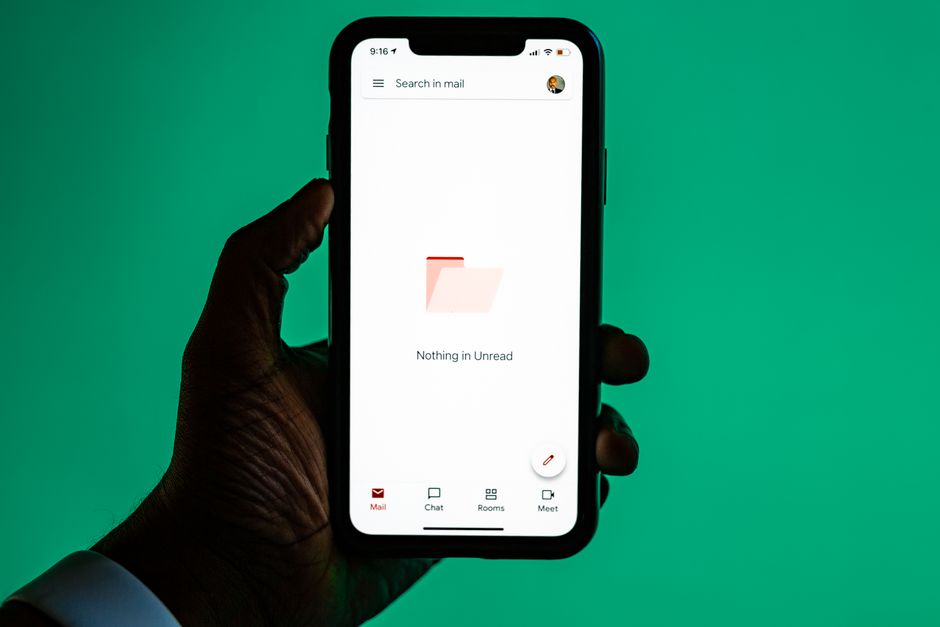
Your inbox does not have to run your morning. With today's AI tools built into Gmail, Outlook, and standalone assistants, you can triage, draft, and send messages in a fraction of the time it used to take. The trick is not the tools themselves—it's having a repeatable routine that tells you exactly what to do and in what order.
This guide gives you a 20-minute morning workflow for AI email management that works whether you use Gmail, Outlook, or a dedicated tool like Superhuman. No coding required.
Why a Routine Beats a Tool
Most people try one AI feature, get a mixed result, and give up. The problem usually isn't the AI—it's the lack of structure. When you process email randomly, you reread the same messages multiple times, lose context, and let easy replies pile up.
A fixed sequence solves this. You handle every message once, decide fast, and let AI do the typing. Over a week or two, the routine becomes automatic, and your inbox stops being a source of low-grade stress.
Before You Start: Set Up Once
Spend 15 minutes doing this setup a single time, and every future morning gets faster.
1. Turn on your AI features
Check what you already have. Gmail offers Gemini-powered smart replies, summaries, and "Help me write" in the compose window. Outlook includes Copilot features like summarize, draft, and coaching on tone. If you use a separate assistant, connect it to your primary account and confirm it can read and draft.
2. Create three folders or labels
Keep it simple: Reply (needs a response from you), Waiting (you're expecting an answer), and Read Later (newsletters, receipts, FYIs). This gives your AI—and your brain—clear buckets to sort into.
3. Write two or three reusable prompts
Save these in a notes app so you can paste them fast. Examples:
"Summarize this thread in three bullet points and tell me what decision is needed from me."
"Draft a polite reply declining this meeting and proposing next Tuesday afternoon instead."
"Rewrite this to be warmer and two sentences shorter."
The 20-Minute Morning Routine
Do these steps in order. Set a timer the first few times so you build a sense of pace.
Minute 0–3: Bulk sort with AI categories
Open your inbox and let the AI's automatic categories or priority sorting do the first pass. In Gmail, glance at the "Important" markers; in Outlook, check the "Focused" tab. Immediately archive anything that's clearly noise—promotions you'll never open, automated notifications, and duplicate alerts. Don't read these; just clear them.
Minute 3–8: Summarize the long threads
Find the two or three messages that are long, forwarded chains or dense updates. Instead of reading top to bottom, click the AI summary button (or paste your summary prompt). Read the three-bullet version, decide whether it needs action, and label it Reply, Waiting, or archive it. This alone can save ten minutes on a busy day.
Minute 8–15: Draft your replies in a batch
Now work through everything labeled Reply. For each one, use "Help me write" or Copilot to generate a first draft. Give the AI a one-line instruction—"say yes and ask for the file," "decline politely," "confirm and thank them." The AI produces a solid starting point in seconds.
Always edit before sending. AI drafts tend to be slightly too wordy or generic. Cut the fluff, add one specific detail only you know, and check names, dates, and numbers. A good rule: the AI writes 80 percent, you supply the 20 percent that makes it sound like you.
Minute 15–18: Handle quick one-liners
For simple messages, lean on smart replies—the suggested short responses at the bottom of an email. A single tap sends "Sounds good, thanks!" or "Will do." Don't overthink these. If a reply takes under 30 seconds, do it now rather than labeling it for later.
Minute 18–20: Review the Waiting list
Skim your Waiting folder. If someone hasn't replied in a few days, use AI to draft a short, friendly nudge. Then close your email. You're done until your next scheduled check.
Guardrails That Keep You Safe
AI email management is a genuine time-saver, but a few habits protect you from embarrassing mistakes.
Never auto-send. Keep AI in draft mode. Review every message before it leaves your outbox.
Watch what you paste. Avoid dropping confidential data—client contracts, passwords, financial details—into any AI tool unless your employer has approved it and the data stays private. When in doubt, summarize the content in your own general terms instead.
Keep your voice. If a draft sounds robotic, tell the AI to match your usual tone or give it an example of how you write. Consistency matters more than polish.
Double-check facts. AI can invent a meeting time or misstate a figure. You are responsible for accuracy, so verify anything specific.
Handling the Backlog First
If you're starting with 3,000 unread messages, don't try to reach zero on day one. Use the "declare bankruptcy" approach: archive everything older than two weeks into a single folder. It's still searchable, but it's out of your active view. Then apply the daily routine going forward. Within a week, your live inbox will stay small and manageable.
What to Expect After Two Weeks
The first few mornings will feel slower because you're learning the tools and refining your prompts. By day five or six, the sequence becomes muscle memory. Most people report cutting email time by a third to a half once the routine sticks—not because AI is magic, but because you've removed the decisions and typing that used to slow you down.
Inbox zero isn't about an empty inbox forever. It's about ending each session with every message either answered, filed, or consciously deferred. AI simply makes that state easier to reach and cheaper to maintain each day.
Adapting the Routine to Your Role
Students can trim this to a 10-minute version focused on professor emails and internship replies. Small-business owners should add a step to route customer inquiries into a shared folder and use AI to draft consistent responses to common questions. Team leaders can use thread summaries before meetings so they walk in already briefed. The structure stays the same—you just adjust which buckets matter most for your day.
Ready to build real AI skills? Join the September 2026 cohort at Class For Jobs. Explore AI for Everyday Use — a practical, no-code course to get more done with AI every day, live and instructor-led with career support, resume help, and job-placement assistance.
Related reading